
Text Generation Web UI
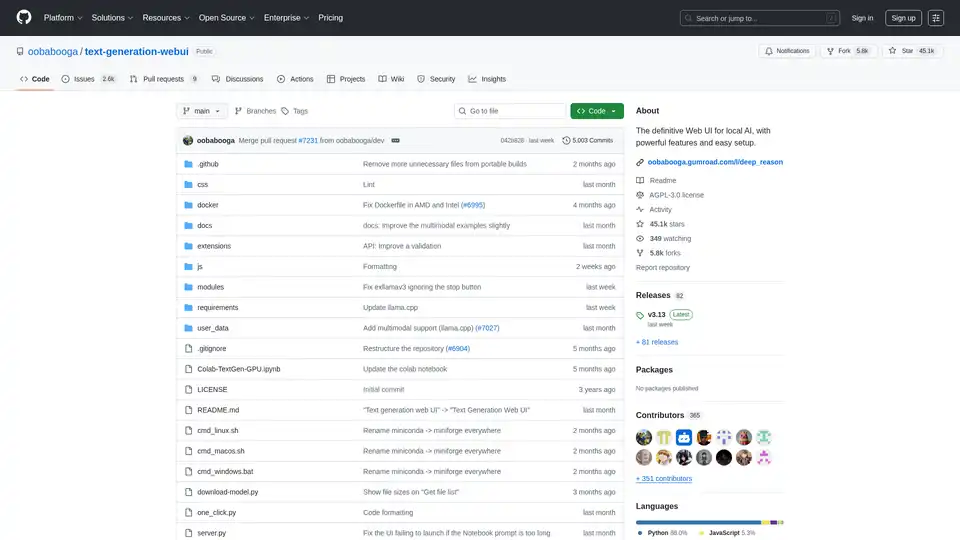
Overview of Text Generation Web UI
Text Generation Web UI: The Ultimate Web Interface for Local AI
What is Text Generation Web UI?
Text Generation Web UI, also known as oobabooga/text-generation-webui, is a user-friendly and feature-rich Gradio web interface designed for interacting with Large Language Models (LLMs) locally. It provides a comprehensive set of tools and functionalities to harness the power of AI text generation on your own machine, ensuring privacy and control.
How does Text Generation Web UI work?
This web UI acts as a bridge between you and various local text generation backends. It supports multiple backends like llama.cpp, Transformers, ExLlamaV3, ExLlamaV2, and TensorRT-LLM. The UI allows you to:
- Select your preferred backend: Choose the backend that suits your hardware and model requirements.
- Load and manage models: Easily load different LLMs and switch between them without restarting the application.
- Configure generation parameters: Fine-tune the text generation process with various sampling parameters and generation options.
- Interact with the model: Use the intuitive chat interface or the free-form notebook tab to interact with the model.
Why choose Text Generation Web UI?
- Privacy: All processing is done locally, ensuring your data remains private.
- Offline functionality: No internet connection is required, allowing you to use the tool anytime, anywhere.
- Versatility: Supports multiple backends and model types, providing flexibility and customization.
- Extensibility: Offers extension support for adding new features and functionalities.
- Ease of use: User-friendly interface with dark and light themes, syntax highlighting, and LaTeX rendering.
Key Features:
- Multiple Backend Support: Seamlessly integrates with
llama.cpp,Transformers,ExLlamaV3,ExLlamaV2, andTensorRT-LLM. - Easy Setup: Offers portable builds for Windows/Linux/macOS, requiring zero setup, and a one-click installer for a self-contained environment.
- Offline and Private: Operates 100% offline with no telemetry, external resources, or remote update requests.
- File Attachments: Allows uploading text files, PDF documents, and .docx files to discuss their content with the AI.
- Vision (Multimodal Models): Supports attaching images to messages for visual understanding (tutorial).
- Web Search: Can optionally search the internet with LLM-generated queries to add context to conversations.
- Aesthetic UI: Features a clean and appealing user interface with dark and light themes.
- Syntax Highlighting and LaTeX Rendering: Provides syntax highlighting for code blocks and LaTeX rendering for mathematical expressions.
- Instruct and Chat Modes: Includes instruct mode for instruction-following and chat modes for interacting with custom characters.
- Automatic Prompt Formatting: Uses Jinja2 templates for automatic prompt formatting.
- Message Editing and Conversation Branching: Enables editing messages, navigating between versions, and branching conversations.
- Multiple Sampling Parameters: Offers sophisticated control over text generation with various sampling parameters and generation options.
- Model Switching: Allows switching between different models in the UI without restarting.
- Automatic GPU Layers: Automatically configures GPU layers for GGUF models on NVIDIA GPUs.
- Free-Form Text Generation: Provides a Notebook tab for free-form text generation without chat turn limitations.
- OpenAI-Compatible API: Includes an OpenAI-compatible API with Chat and Completions endpoints, including tool-calling support.
- Extension Support: Supports numerous built-in and user-contributed extensions.
How to Install Text Generation Web UI:
- Portable Builds (Recommended for Quick Start):
- Download the portable build from the releases page.
- Unzip the downloaded file.
- Run the executable.
- Manual Portable Install with venv:
git clone https://github.com/oobabooga/text-generation-webui cd text-generation-webui python -m venv venv # On Windows: venv\Scripts\activate # On macOS/Linux: source venv/bin/activate pip install -r requirements/portable/requirements.txt --upgrade python server.py --portable --api --auto-launch deactivate - One-Click Installer (For advanced users):
- Clone the repository or download the source code.
- Run the startup script for your OS (start_windows.bat, start_linux.sh, or start_macos.sh).
- Select your GPU vendor when prompted.
- After installation, open
http://127.0.0.1:7860in your browser.
Downloading Models:
Models should be placed in the text-generation-webui/user_data/models folder. GGUF models should be placed directly into this folder, while other model types should be placed in a subfolder.
Example:
text-generation-webui
└── user_data
    └── models
        └── llama-2-13b-chat.Q4_K_M.gguf

text-generation-webui
└── user_data
    └── models
        └── lmsys_vicuna-33b-v1.3
            ├── config.json
            ├── generation_config.json
            ├── pytorch_model-00001-of-00007.bin
            ...
You can also use the UI to download models automatically from Hugging Face or use the command-line tool:
python download-model.py organization/model
Run python download-model.py --help to see all the options.
Who is Text Generation Web UI for?
Text Generation Web UI is ideal for:
- Researchers and developers working with LLMs.
- AI enthusiasts who want to experiment with text generation.
- Users who prioritize privacy and want to run LLMs locally.
Useful Resources:
Text Generation Web UI provides a powerful and versatile platform for exploring the capabilities of local AI text generation. Its ease of use, extensive features, and commitment to privacy make it an excellent choice for anyone interested in working with Large Language Models on their own terms.
AI Programming Assistant Auto Code Completion AI Code Review and Optimization AI Low-Code and No-Code Development
Best Alternative Tools to "Text Generation Web UI"
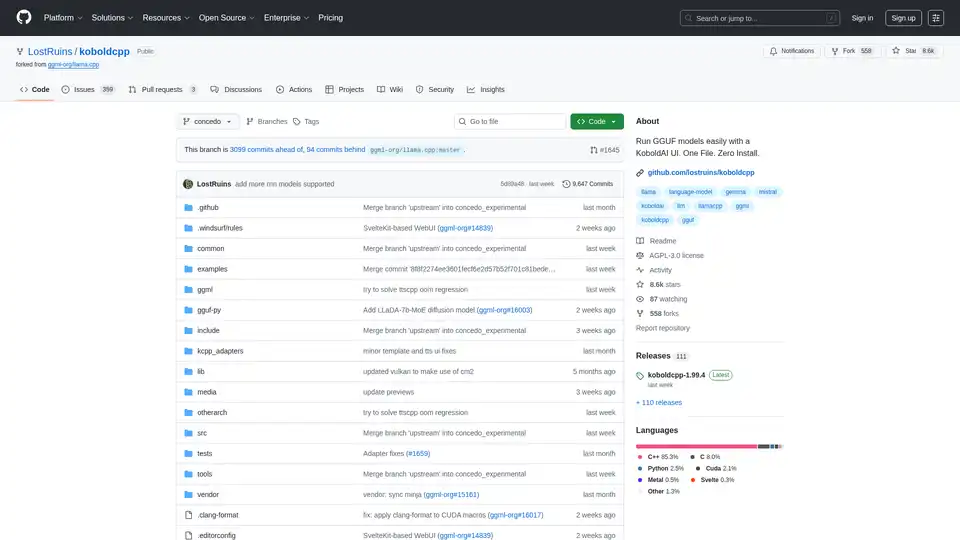
KoboldCpp: Run GGUF models easily for AI text & image generation with a KoboldAI UI. Single file, zero install. Supports CPU/GPU, STT, TTS, & Stable Diffusion.
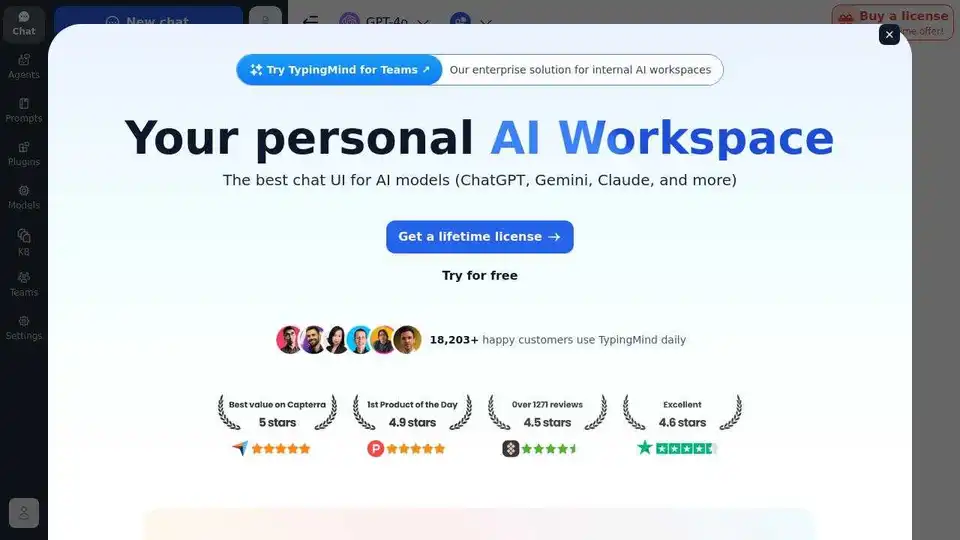
TypingMind is an AI chat UI that supports GPT-4, Gemini, Claude, and other LLMs. Use your API keys and pay only for what you use. Best chat LLM frontend UI for all AI models.
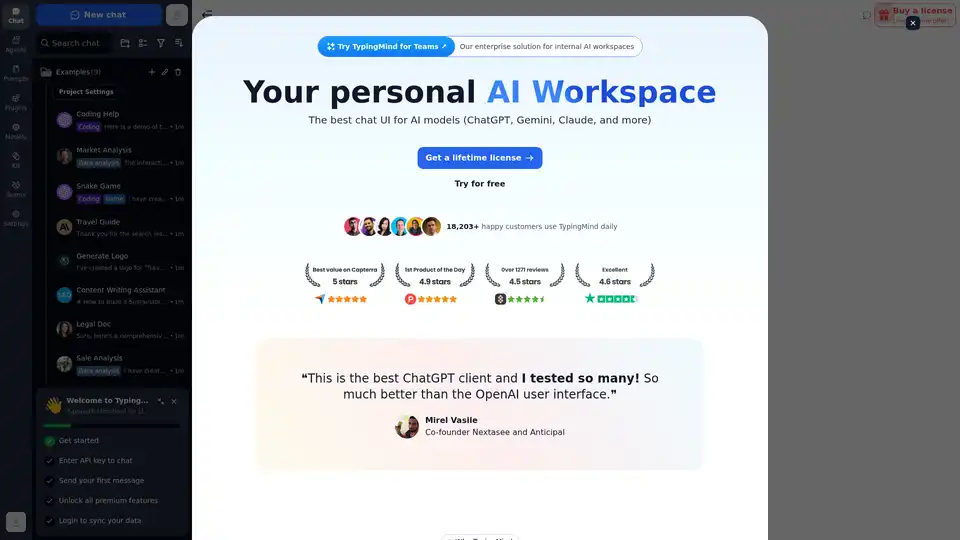
Chat with AI using your API keys. Pay only for what you use. GPT-4, Gemini, Claude, and other LLMs supported. The best chat LLM frontend UI for all AI models.