
ComfyUI
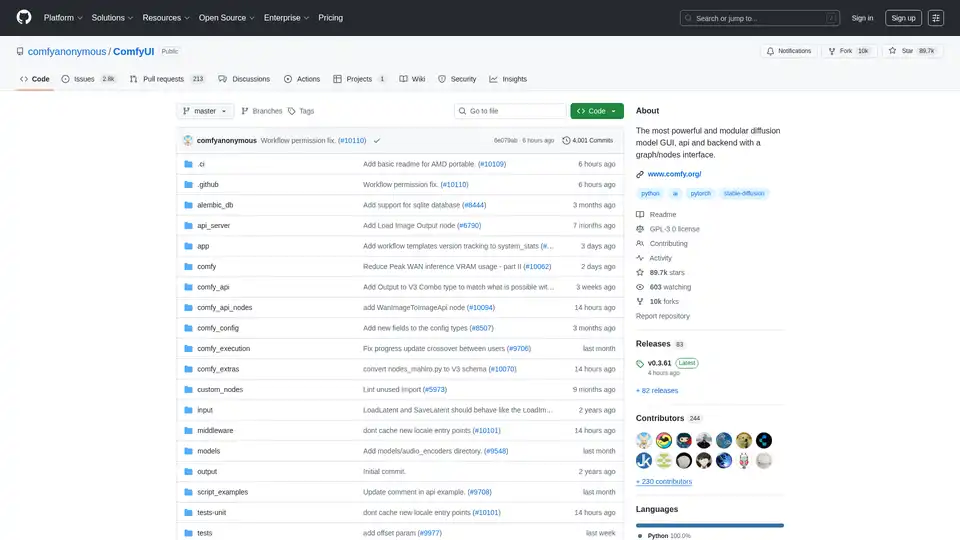
Overview of ComfyUI
ComfyUI: The Most Powerful and Modular Visual AI Engine
What is ComfyUI?
ComfyUI is a powerful and modular visual AI engine designed for creating and executing advanced Stable Diffusion pipelines. It uses a graph/nodes/flowchart-based interface, making it accessible on Windows, Linux, and macOS.
Key Features
- Nodes/Graph/Flowchart Interface: Experiment and create complex Stable Diffusion workflows without coding.
- Asynchronous Queue System: Optimizes execution by re-executing only the parts of the workflow that change.
- Smart Memory Management: Runs large models on GPUs with as low as 1GB VRAM through smart offloading.
- Extensive Model Support:
- SD1.x, SD2.x (unCLIP)
- SDXL, SDXL Turbo
- Stable Cascade
- SD3 and SD3.5
- Pixart Alpha and Sigma
- AuraFlow, HunyuanDiT, Flux, Lumina Image 2.0, HiDream, Qwen Image, Hunyuan Image 2.1
- Omnigen 2, Flux Kontext, HiDream E1.1, Qwen Image Edit
- Stable Video Diffusion, Mochi, LTX-Video, Hunyuan Video, Wan 2.1, Wan 2.2
- Stable Audio, ACE Step
- Hunyuan3D 2.0
- Flexible Loading: Loads checkpoints and safetensors, including standalone diffusion models, VAEs, and CLIP models.
- Safe File Loading: Ensures secure loading of ckpt, pt, pth, and other files.
- Versatile Techniques: Supports embeddings, textual inversion, LoRAs (regular, locon, and loha), and hypernetworks.
- Workflow Integration: Loads full workflows (with seeds) from generated PNG, WebP, and FLAC files.
- Customizable Nodes: Nodes interface for creating advanced workflows like Hires fix and more.
- Advanced Features: Area composition, inpainting, ControlNet, T2I-Adapter, GLIGEN, model merging, and LCM models.
- Offline Functionality: Core operates fully offline, without requiring downloads unless specified.
- API Integration: Optional API nodes for using paid models from external providers.
- Configurable Model Paths: Allows setting custom search paths for models.
How does ComfyUI work?
ComfyUI operates through a visual interface where you connect nodes to create complex workflows. Each node performs a specific task, such as loading a model, encoding text, or generating an image. The data flows through these nodes, with only the parts of the graph that have changed being re-executed, optimizing performance and resource usage.
How to Use ComfyUI?
- Installation: Choose between the Desktop Application, Windows Portable Package, or Manual Install.
- Model Placement: Place your Stable Diffusion checkpoints in the
models/checkpointsdirectory. - Run ComfyUI: Execute the
main.pyscript using Python.
Manual Installation
To manually install ComfyUI, follow these steps:
- Clone the Repository:
git clone https://github.com/comfyanonymous/ComfyUI cd ComfyUI - Install Dependencies:
pip install -r requirements.txt - Run ComfyUI:
python main.py
Why Choose ComfyUI?
- Modularity: Design and experiment with intricate Stable Diffusion pipelines without coding.
- Efficiency: Reduce computational load using smart memory management and asynchronous execution.
- Flexibility: Supports many models, techniques, and hardware configurations.
- Customization: Build and share custom nodes and workflows.
Who is ComfyUI For?
ComfyUI is designed for:
- AI enthusiasts who want a visual interface for creating complex Stable Diffusion pipelines.
- Researchers and developers who need a modular and flexible framework for experimenting with new AI techniques.
- Artists and designers who want to generate and manipulate images using AI.
Release Process
ComfyUI follows a weekly release cycle, but this can change due to model releases or significant code updates. The release process involves three interconnected repositories:
- ComfyUI Core: Releases stable versions and serves as the foundation for the desktop release.
- ComfyUI Desktop: Builds new releases using the latest stable core version.
- ComfyUI Frontend: Receives weekly updates, with features frozen for the upcoming core release.
Getting Started
Desktop Application
The easiest way to get started, available on Windows & macOS.
Windows Portable Package
Get the latest commits and completely portable version, available on Windows.
Manual Install
Supports all operating systems and GPU types (NVIDIA, AMD, Intel, Apple Silicon, Ascend).
Example Workflows
Explore example workflows to see what ComfyUI can do.
How to share models between another UI and ComfyUI?
See the Config file to set the search paths for models. In the standalone windows build you can find this file in the ComfyUI directory. Rename this file to extra_model_paths.yaml and edit it with your favorite text editor.
Community
- Discord: Try the #help or #feedback channels.
- Matrix space: #comfyui_space:matrix.org (it's like discord but open source).
Best way to create AI workflows?
To create effective AI workflows in ComfyUI, start with a clear goal and break down the process into smaller, manageable steps. Utilize the node-based interface to connect various operations, such as loading models, processing images, and applying effects. Experiment with different configurations and leverage community resources for inspiration and guidance.
TL;DR
ComfyUI is a robust, modular, and versatile visual AI engine that provides users with the tools to produce complex Stable Diffusion pipelines. The visual based graph/nodes interface make it accessible to artists, researchers, and developers alike.
AI Generated Art Image Enhancement and Repair Image Style Transfer AI Background Removal and Replacement AI Avatar and Cartoonization 3D Modeling and Rendering Logo and UI Design
Best Alternative Tools to "ComfyUI"

Highly Reliable Cloud-Based ComfyUI, Edit and Run ComfyUI Workflows Online, Publish Them as AI Apps to Earn Revenue, Hundreds of new AI apps daily.
InvokeAI is a creative engine for Stable Diffusion models, empowering users to generate visual media with AI. Offers a web-based UI and is the base for commercial products.
Image Pipeline empowers you to create production-quality AI visuals with maximum control using the latest tech like Stable Diffusion, ControlNets, and custom models. Focus on building AI products without GPU maintenance.

Mind-Video uses AI to reconstruct videos from brain activity captured via fMRI. This innovative tool combines masked brain modeling, multimodal contrastive learning, and spatiotemporal attention to generate high-quality video.